 platfactory
Day one · for everyone
Model Manager
Model Manager is there from day one, on any machine. You keep the models local, see what the machine is doing, and you see at once which formats fit the engine.
Why Model Manager, not only LM Studio
LM Studio is a familiar place to try a model in a chat window. Model Manager gives you more flexibility on the machine you own: it reads your hardware, suggests models that fit, shows which engines and formats you can use and which you cannot, and shows how the serving API plugs into modern agentic editors.
- Suggests models from what this machine actually has — graphics card, video memory, and system memory
- See which engines you can use and which you cannot; Model Manager prepares everything the chosen engine needs to run
- A clear guide for pointing Cursor, Continue, Claude Desktop, Codex, Hermes, and other agentic editors at the local serving API
- More room to choose: engines, formats, and profiles designed for the role you want the AI to act as — not one fixed path
- Allowed or not compatible, per format, so you download what will run
- Setup, logs, and IDE hooks stay in one place, so you stay on the work instead of on setup problems
- Start and stop a model, keep it on disk, and serve it without a cloud account
The dashboard
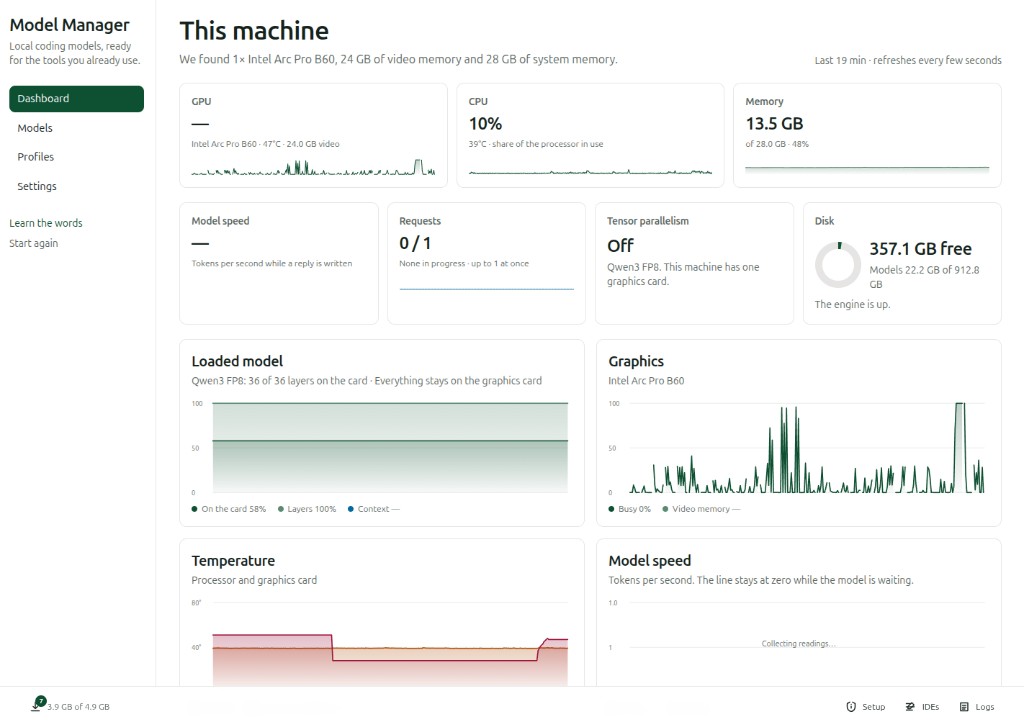
The dashboard finds the graphics card and memory, shows which model is loaded, and tracks temperature, speed, and disk while the model runs. Models, profiles, and settings sit next to it. Setup, IDEs, and logs are one click away.
- This machine: graphics card, video memory, system memory, and free disk
- Loaded model: layers on the card, requests in progress, tokens per second
- Watch GPU, CPU, memory, and temperature while a reply is written
Setup on one page
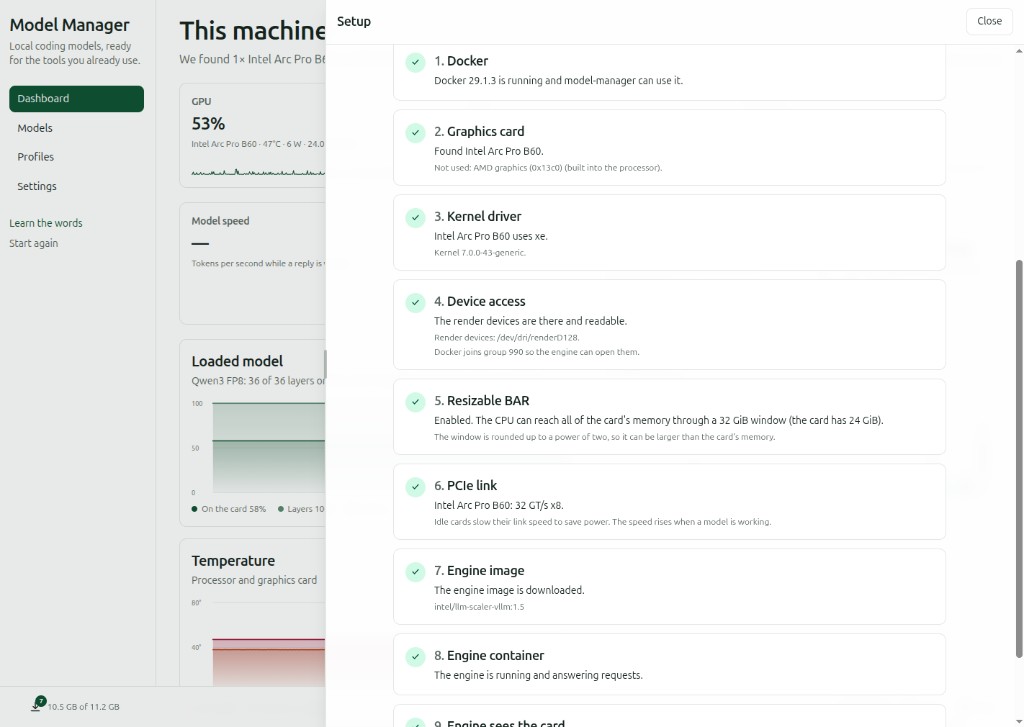
Setup detects and aggregates every requirement on one page — Docker, the card, the driver, device access, Resizable BAR, PCIe, and the engine — so you see the real issue instead of getting lost in setup.
- Docker, graphics card, kernel driver, and device access in one checklist
- Resizable BAR, PCIe link, engine image, and engine container
- Green means ready; a fail points at the real issue, not a setup maze
Which format fits which engine
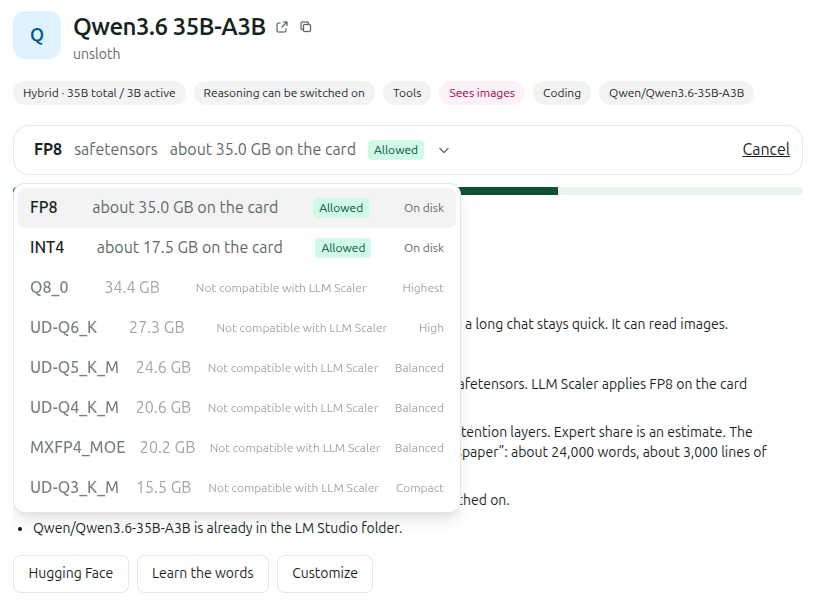
For each model you see which file formats fit the engine on this machine. Allowed and already on disk are ready to use. Incompatible formats stay grey, with the reason beside them, so you do not waste time on a download that will not run.
- Allowed or not compatible, per format, for the engine that is running now
- How much video memory the format asks of the card
- Highest, high, balanced, or compact — so you see the trade-off before you download
On any machine from day one
Model Manager comes with the machine. The other repositories — Coder, Research, Golden Skills, Audit AI, and Product simulation runner — are built for a specific job.